

Nearly 95% of the web's most visited pages contain detectable accessibility failures, with an average of 51 errors per page. This staggering reality reveals a critical gap between awareness and implementation. Web accessibility ensures that all users, regardless of ability, can perceive, understand, navigate, and interact with digital content effectively. For developers and marketers, mastering accessibility principles isn't just about compliance with legal standards like WCAG 2.1, it's about creating inclusive experiences that expand reach, improve usability, and future-proof digital properties. This guide clarifies core concepts, explains evolving standards, and provides actionable implementation strategies to help you build truly accessible websites.
Table of Contents
- Understanding Web Accessibility: Core Principles And Importance
- Web Content Accessibility Guidelines (WCAG): Evolution From 2.0 To 3.0
- Implementing Accessibility: Native Html, Aria Best Practices, And Common Pitfalls
- Current State Of Web Accessibility: Challenges, Progress, And Practical Next Steps
- Enhance Your Web Accessibility With Expert Design Help
- Frequently Asked Questions
Key takeaways
| Point | Details |
|---|---|
| Web accessibility benefits all users | Ensuring content is perceivable, operable, understandable, and robust improves experience for everyone, not just users with disabilities. |
| WCAG standards evolve continuously | WCAG 2.1 extends 2.0 with mobile and cognitive enhancements, while WCAG 3.0 expands to VR and dynamic content. |
| Most websites fail basic checks | Over 94% of top pages have detectable errors, highlighting urgent need for proactive accessibility measures. |
| Native HTML beats excessive ARIA | Semantic elements provide built-in accessibility features that ARIA can't match when overused or misapplied. |
| Legal requirements enforce compliance | US and EU mandates with real deadlines make accessibility a legal necessity, not just best practice. |
Understanding web accessibility: core principles and importance
Web accessibility means designing and developing digital content so everyone can use it effectively, regardless of physical, cognitive, or sensory abilities. This includes people with visual impairments who rely on screen readers, individuals with motor disabilities who navigate via keyboard or voice commands, users with hearing loss who need captions, and those with cognitive differences who benefit from clear language and consistent layouts. The aging population also depends on accessible design as vision, hearing, and motor skills naturally decline.
The foundation of accessible design rests on four core principles established by WCAG. Content must be perceivable to users in some way, meaning information can't rely solely on one sense. It must be operable through various input methods beyond a mouse. Users need to understand both the information and interface operation. Finally, content must be robust enough to work reliably across diverse assistive technologies and browsers.
Common barriers illustrate why these principles matter. Images without alternative text leave blind users guessing at content. Videos lacking captions exclude deaf audiences. Low contrast text strains vision for users with color blindness or low vision. Keyboard traps prevent navigation for those who can't use a mouse. Form fields without proper labels confuse screen reader users. These obstacles don't just frustrate individuals, they represent lost customers, reduced engagement, and potential legal exposure.
Businesses gain tangible benefits from prioritizing accessibility. Broader audience reach translates to more potential customers. Improved SEO performance comes from semantic HTML and descriptive content. Enhanced usability helps all users complete tasks faster. Legal compliance protects against costly lawsuits and penalties. The legal landscape increasingly enforces accessibility, with the Americans with Disabilities Act in the US and the European Accessibility Act in the EU establishing mandatory standards for digital properties.
"Accessibility is not a feature, it's a fundamental aspect of web development that determines whether your content reaches its full potential audience."
The business case extends beyond risk mitigation. Accessible websites typically perform better in search rankings because the same practices that help screen readers also help search engine crawlers understand content structure. Clear navigation benefits users with cognitive disabilities and rushed users alike. Keyboard accessibility helps power users who prefer shortcuts. When you design for the edges, you improve the experience for everyone in the middle.
Web Content Accessibility Guidelines (WCAG): evolution from 2.0 to 3.0
WCAG 2.0, released in 2008, established the first comprehensive framework for web accessibility with testable success criteria organized into three conformance levels: A, AA, and AAA. Level A addresses the most basic requirements, AA tackles common barriers and represents the standard most organizations target, and AAA provides the highest level of accessibility. These guidelines focused primarily on desktop web content and established principles that remain relevant today.
WCAG 2.1 extends WCAG 2.0 with 17 additional success criteria addressing mobile accessibility, users with low vision, and people with cognitive and learning disabilities. Critically, 2.1 maintains full backward compatibility, meaning any content conforming to 2.1 also conforms to 2.0. The expanded guidelines cover touch targets, orientation flexibility, input modalities beyond keyboard, and content that adapts to user preferences. This version applies across desktop, mobile, kiosk, and other device types, making it the current practical standard for implementation.
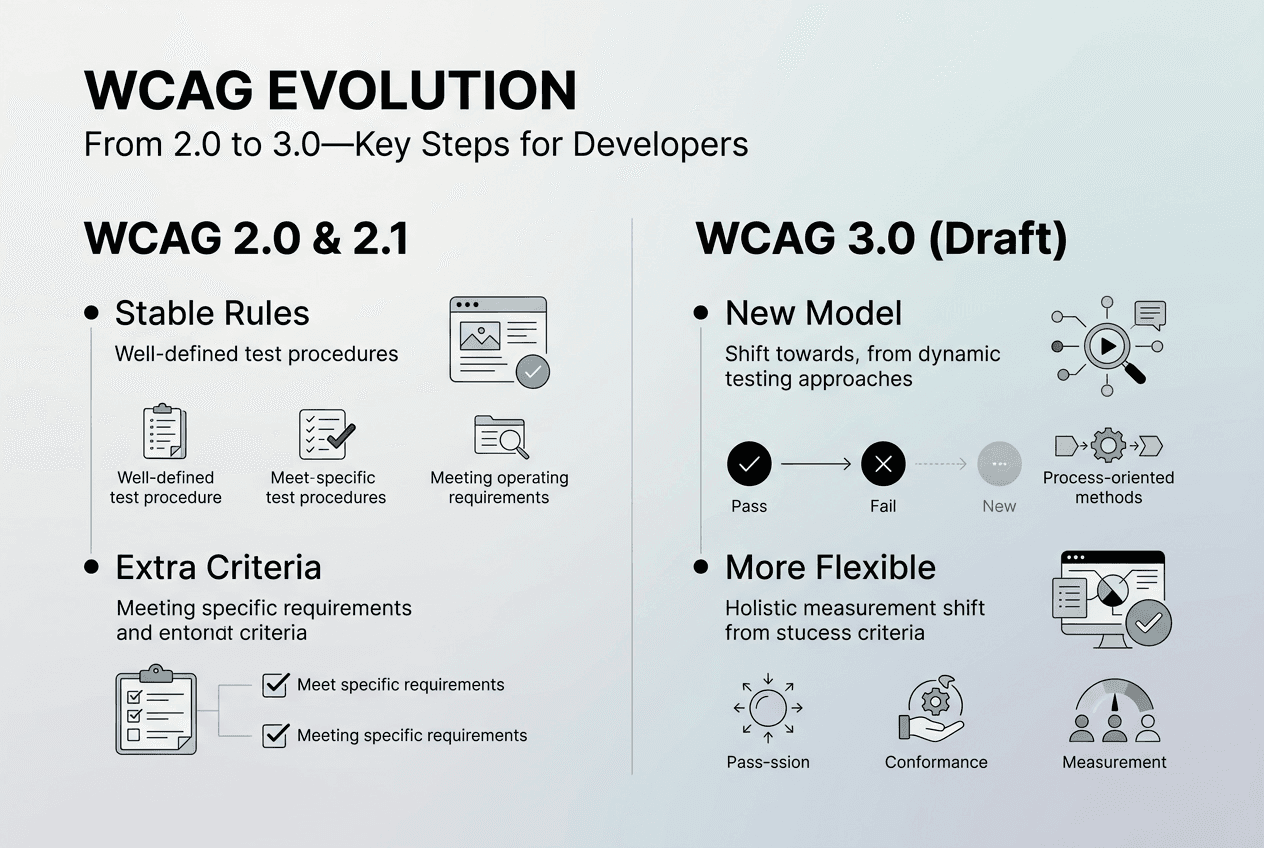
WCAG 3.0, currently in draft status, represents a fundamental restructuring rather than incremental update. WCAG 3.0 addresses diverse content, including dynamic applications, virtual reality experiences, voice interfaces, and Internet of Things devices. The draft introduces a new conformance model moving beyond simple pass/fail criteria to scoring systems that better reflect real-world user impact. It explicitly considers multiple concurrent disabilities and expands beyond web content to encompass broader digital experiences.
| Feature | WCAG 2.0 | WCAG 2.1 | WCAG 3.0 (Draft) |
|---|---|---|---|
| Release status | Stable (2008) | Current standard (2018) | Working draft |
| Success criteria | 61 testable items | 78 testable items | Restructured scoring |
| Device coverage | Primarily desktop | All devices | Expanded to VR/IoT |
| Conformance levels | A, AA, AAA | A, AA, AAA | New scoring model |
| Content types | Static web pages | Mobile, dynamic content | Voice, VR, emerging tech |
For current projects, WCAG 2.1 Level AA conformance provides the most practical target. This standard balances comprehensive accessibility with achievable implementation, satisfies most legal requirements, and ensures your work remains relevant as standards evolve. While 3.0 promises important advances, its draft status means relying on 2.1 gives you a stable foundation that won't require complete restructuring when the new standard finalizes.
Pro Tip: Start accessibility work early in the design phase rather than treating it as a final checklist item. Retrofitting accessibility into completed designs costs significantly more time and money than building it in from the start, and early consideration leads to more elegant solutions that enhance overall user experience.
Implementing accessibility: native HTML, ARIA best practices, and common pitfalls
Semantic HTML elements provide the strongest foundation for accessible web development. Native HTML elements have built-in accessibility features like appropriate roles, keyboard interaction patterns, and state management that browsers and assistive technologies understand automatically. A button element inherently communicates its purpose, responds to keyboard activation, and maintains focus management without additional code. Heading elements establish document structure that screen readers use for navigation. Form controls like input, select, and textarea come with expected behaviors that users rely on.

Accessible Rich Internet Applications (ARIA) fills gaps where HTML alone can't convey necessary information to assistive technologies. ARIA attributes add roles, states, and properties to elements, enabling complex interactive widgets like tree views, sliders, and modal dialogs. However, the first rule of ARIA is to avoid using it when native HTML suffices. A div with role="button" requires manual keyboard handling, focus management, and state tracking that a button element provides automatically. ARIA should enhance semantic HTML, not replace it.
Common ARIA anti-patterns create serious usability problems. Adding role="button" to a link changes how screen readers announce it but doesn't add keyboard functionality, leaving keyboard users unable to activate it properly. Redundant ARIA, like aria-label on elements that already have visible text, creates confusion when the label doesn't match what sighted users see. Incorrect state management, such as failing to update aria-expanded when toggling content visibility, misleads users about interface state. Overriding native semantics with conflicting ARIA roles breaks expected behavior patterns.
Proper implementation follows clear priorities. Use semantic HTML elements first. Add ARIA only when HTML can't express the necessary semantics. Test with actual assistive technologies, not just automated checkers. Maintain consistency between visual presentation and semantic meaning. When building custom interactive components, study existing ARIA authoring practices rather than inventing new patterns.
Pro Tip: Before adding ARIA to solve an accessibility issue, ask whether restructuring your HTML with semantic elements would eliminate the need for ARIA entirely. This approach produces more maintainable code that works reliably across diverse assistive technologies.
Key practices for accessibility-friendly code include:
- Use heading elements (h1 through h6) to create logical document structure, not for visual styling
- Provide alternative text for images that conveys equivalent information, not just descriptions
- Ensure form inputs have associated labels using the label element or aria-labelledby
- Maintain visible focus indicators so keyboard users can track their position
- Test color contrast ratios to meet minimum 4.5:1 for normal text, 3:1 for large text
- Enable keyboard navigation for all interactive elements without requiring a mouse
- Use semantic landmarks (nav, main, aside) to define page regions
- Provide skip links to bypass repetitive navigation blocks
- Ensure dynamic content updates announce changes to screen reader users
- Avoid relying solely on color to convey information
Current state of web accessibility: challenges, progress, and practical next steps
Recent data paints a sobering picture of web accessibility implementation. 94.8% of top home pages have detectable WCAG failures, with an average of 51 errors per page. This represents only a modest improvement from previous years despite increased awareness, legal pressure, and available tools. The persistence of these issues reveals that knowing about accessibility doesn't automatically translate to implementing it effectively.
The most common error categories remain stubbornly prevalent. Low contrast text affects readability for users with visual impairments and appears on the majority of websites. Missing alternative text for images leaves blind users without access to visual information. Improper ARIA usage, including redundant or conflicting attributes, confuses assistive technologies rather than helping them. Empty links and buttons provide no context about their purpose. Form inputs lacking proper labels prevent screen readers from identifying fields. These aren't edge cases or obscure requirements, they're fundamental accessibility principles.
| Metric | 2022 | 2024 | 2026 |
|---|---|---|---|
| Pages with detectable errors | 96.3% | 95.9% | 94.8% |
| Average errors per page | 57 | 53 | 51 |
| Low contrast issues | 86% | 83% | 81% |
| Missing alt text | 58% | 54% | 52% |
| ARIA misuse | 34% | 31% | 29% |
Progress exists but moves incrementally. Automated testing catches more issues as tools improve. Developer education raises awareness of common pitfalls. Legal mandates with real deadlines push organizations to prioritize accessibility. Major frameworks increasingly build accessibility into default components. Yet the gap between awareness and implementation persists because accessibility requires ongoing attention, not one-time fixes.
"The slow pace of accessibility improvement despite growing legal requirements suggests that many organizations still treat compliance as a checklist exercise rather than integrating accessibility into their development culture and processes."
Practical steps to improve your website's accessibility:
- Conduct an initial audit using automated tools like axe DevTools, WAVE, or Lighthouse to identify obvious issues and establish a baseline
- Prioritize fixes based on impact, addressing critical barriers that prevent core functionality before cosmetic improvements
- Implement manual testing with keyboard navigation, screen readers, and other assistive technologies to catch issues automation misses
- Establish accessibility requirements in your design system and component library to prevent introducing new barriers
- Include accessibility criteria in code review processes and definition of done for development tasks
- Train team members on accessibility principles and testing methods to build organizational capability
- Monitor accessibility continuously through automated testing in your CI/CD pipeline and periodic manual audits
- Engage users with disabilities in testing to understand real-world impact beyond technical compliance
- Document accessibility features and known issues to guide future improvements and set user expectations
- Create a public accessibility statement demonstrating commitment and providing contact information for reporting issues
Starting this process feels overwhelming, but incremental progress compounds over time. Focus first on new features and high-traffic pages rather than attempting to fix everything simultaneously. Each improvement benefits real users immediately while building team skills for future work.
Enhance your web accessibility with expert design help
Implementing comprehensive web accessibility requires balancing technical standards, user experience principles, and practical constraints. Professional guidance accelerates this process while avoiding common pitfalls that lead to superficial compliance without genuine usability improvements.
I specialize in building custom websites that integrate accessibility from the ground up, ensuring your digital presence reaches its full potential audience while meeting legal requirements. My approach combines clean development practices, modern design principles, and conversion-focused user experience to create websites that work beautifully for everyone. Whether you're starting fresh or improving an existing site, expert support helps you navigate accessibility standards confidently and implement solutions that enhance rather than constrain your design vision. Visit Mousai Design to explore how accessible design elevates your entire web presence.
Frequently asked questions
What is web accessibility?
Web accessibility means designing and developing digital content so people with disabilities can perceive, understand, navigate, and interact with it effectively. This includes visual, auditory, motor, and cognitive disabilities. Accessible design benefits everyone by improving overall usability, not just users with disabilities.
What's the difference between WCAG 2.0, 2.1, and 3.0?
WCAG 2.0 established the foundational framework in 2008 focused on desktop web content. WCAG 2.1 extends 2.0 with additional criteria for mobile, low vision, and cognitive disabilities while maintaining full backward compatibility. WCAG 3.0 remains in draft status and will expand to cover VR, voice interfaces, and emerging technologies with a new conformance model.
How do I test my website for accessibility?
Start with automated tools like axe DevTools, WAVE, or Lighthouse to identify common issues quickly. Follow up with manual keyboard navigation testing, checking that all functionality works without a mouse. Test with screen readers like NVDA or JAWS to experience how assistive technology users interact with your content. Automated tools catch only about 30% of accessibility issues, so manual testing is essential.
When should I use ARIA attributes?
Use ARIA only when native HTML elements can't convey necessary semantic information to assistive technologies. Semantic HTML like button, nav, and heading elements provide built-in accessibility that ARIA can't improve. Add ARIA to enhance custom interactive components like accordions or tabs where HTML alone doesn't communicate dynamic states and relationships. Remember that incorrect ARIA creates worse experiences than no ARIA at all.
What are the legal requirements for web accessibility?
In the United States, the Americans with Disabilities Act applies to websites of businesses open to the public, though specific technical requirements aren't explicitly defined in the law itself. The European Accessibility Act requires public sector websites and many private sector digital services to meet WCAG 2.1 Level AA standards by specified deadlines. Many countries have similar legislation, making WCAG 2.1 Level AA the practical global standard for legal compliance.